Scenario account
Written By Clayton Combe
Last updated 6 months ago
Creating an account
When you first open Scenario, you’ll be viewing anonymously, with no account. To access your own workspace and set up a subscription to use more features, you’ll need to create an account.
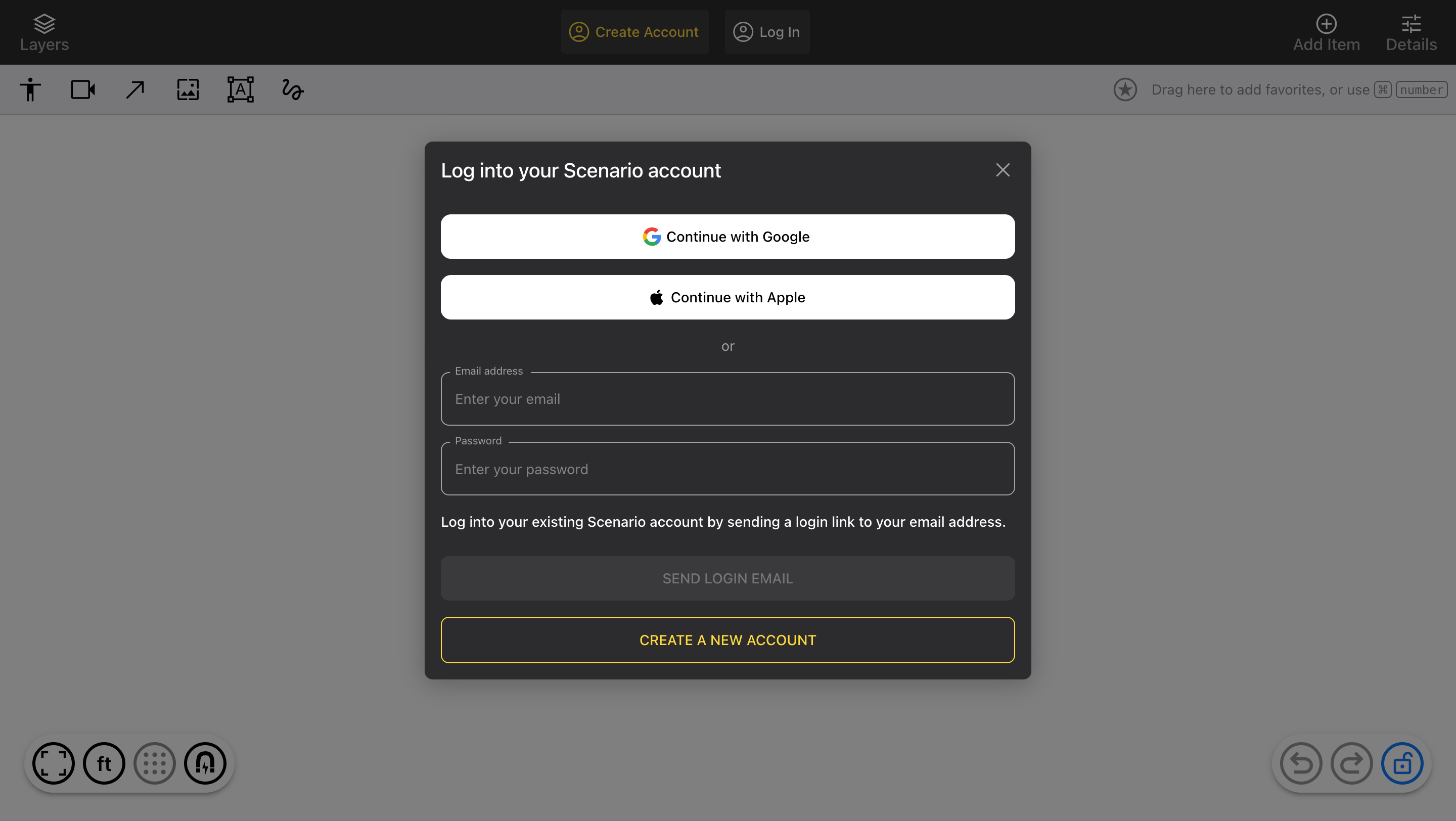
Click the “Create Account” button in the top toolbar
Choose to create with Google, Apple, or an email address
If you choose Google or Apple, verify that account, and you’ll be logged in immediately
If you choose email, enter your information and click Create account
Name and email are mandatory (phone number is optional)
If you want to use a password, enter it here
We’ll send you a verification email (even if you enter a password). Click the link in the email you receive to log in with your new account!
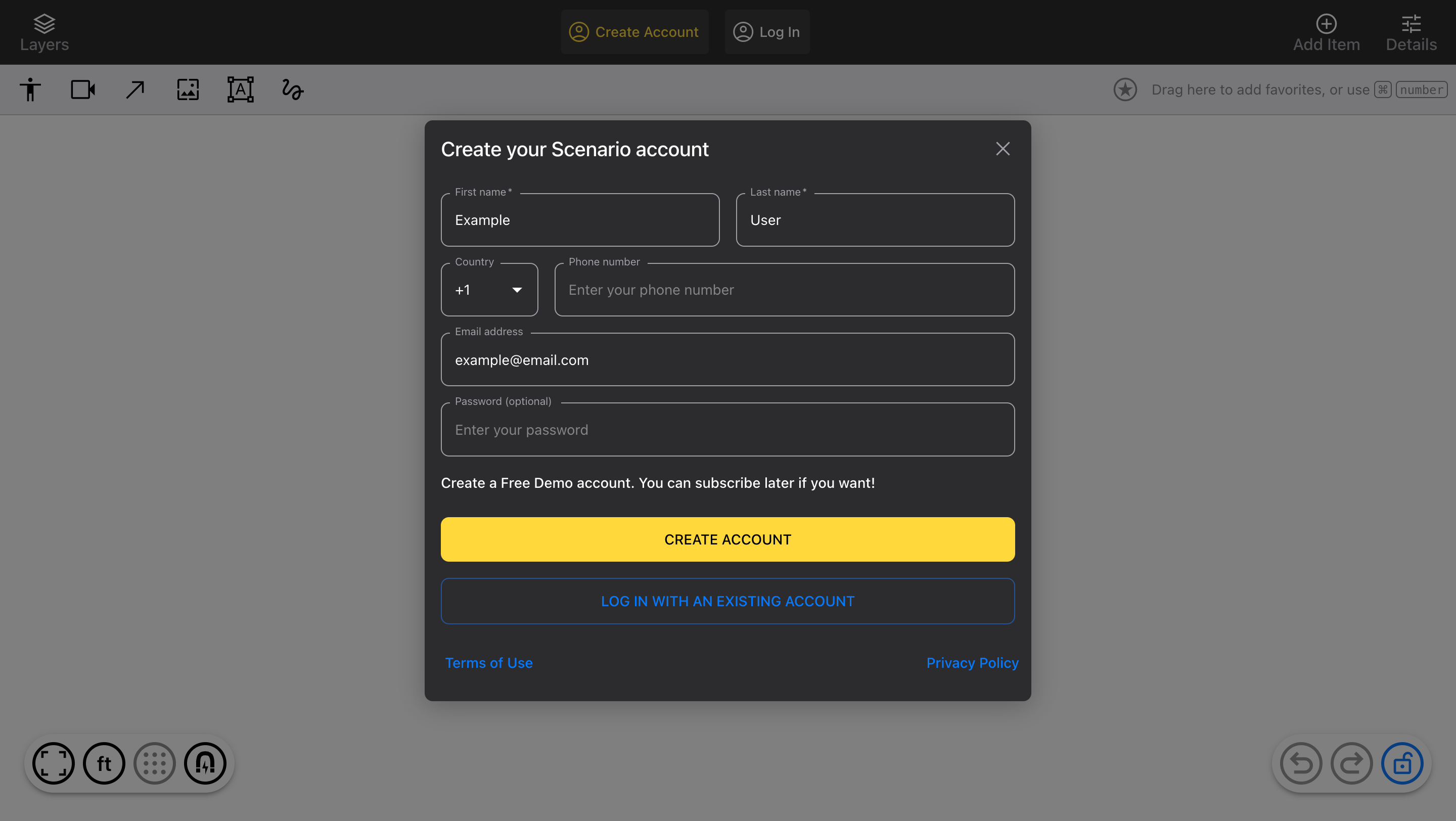
Log into your account
On a new device or your regular one, login is the same:
Click the “Log In” button
Choose the method you've used before (Google, Apple, email with/without password)
To log in with an email login link, enter your email address only
To log in with an email and password, enter both
To reset your password, enter something in the password field and click the Reset Password button; we’ll send you an email with a link to reset it
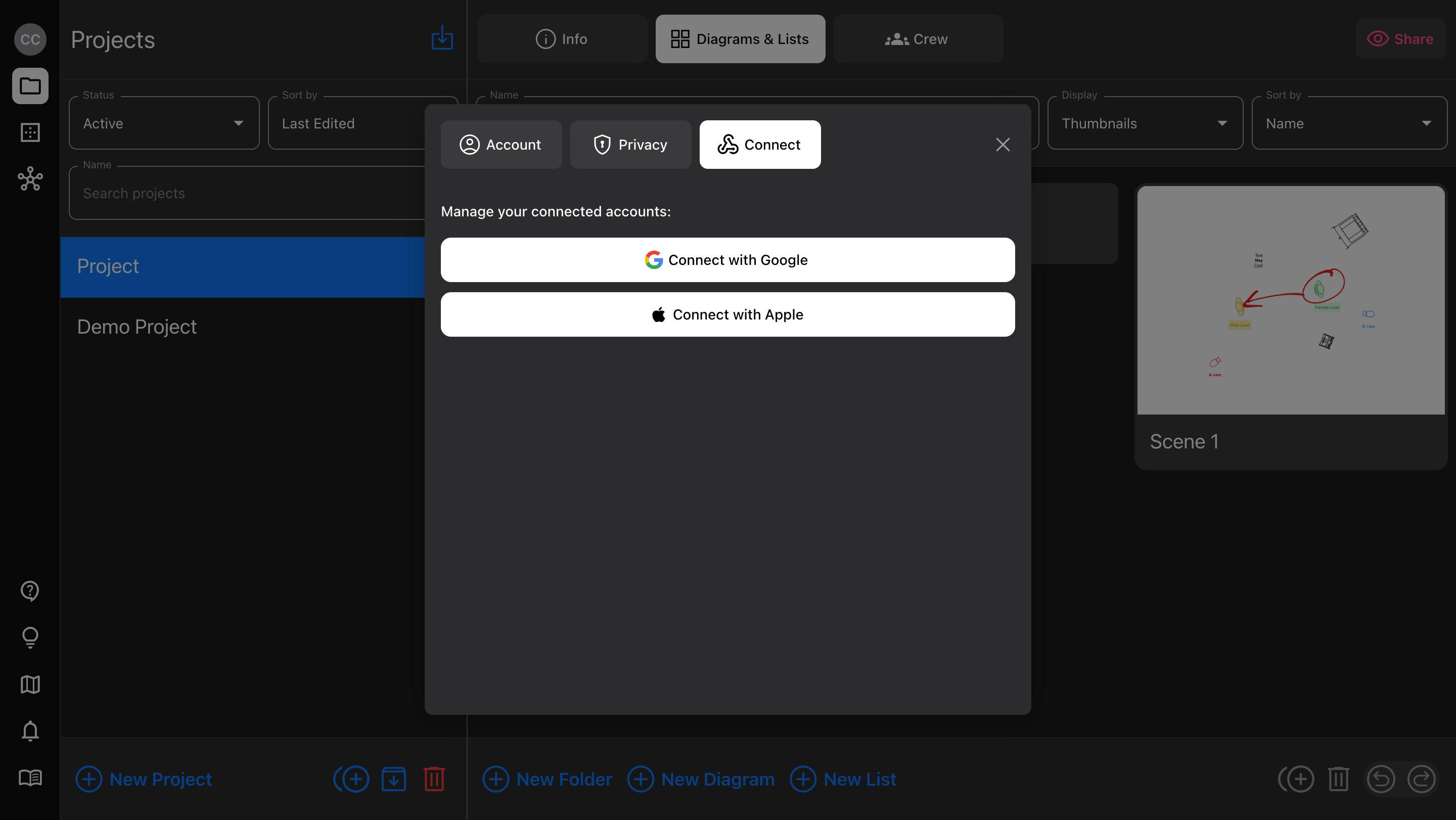
Connecting Google/Apple accounts
You can add one of each account, for Google and Apple.
Google and Apple emails can be used to create and sign into a Scenario account
Google accounts can also be used to sync project dates to your calendar (Apple coming soon)
Note: when signing in with Apple, do NOT use Private Relay, because it will not save your real email address to your account.
Open your account view
Switch to the Connect tab
To connect a new account, click the button and verify in the new tab/window
To disconnect an account, click the X and confirm
Managing your account
Once logged in, click the account button (with your initials) in the top left corner:
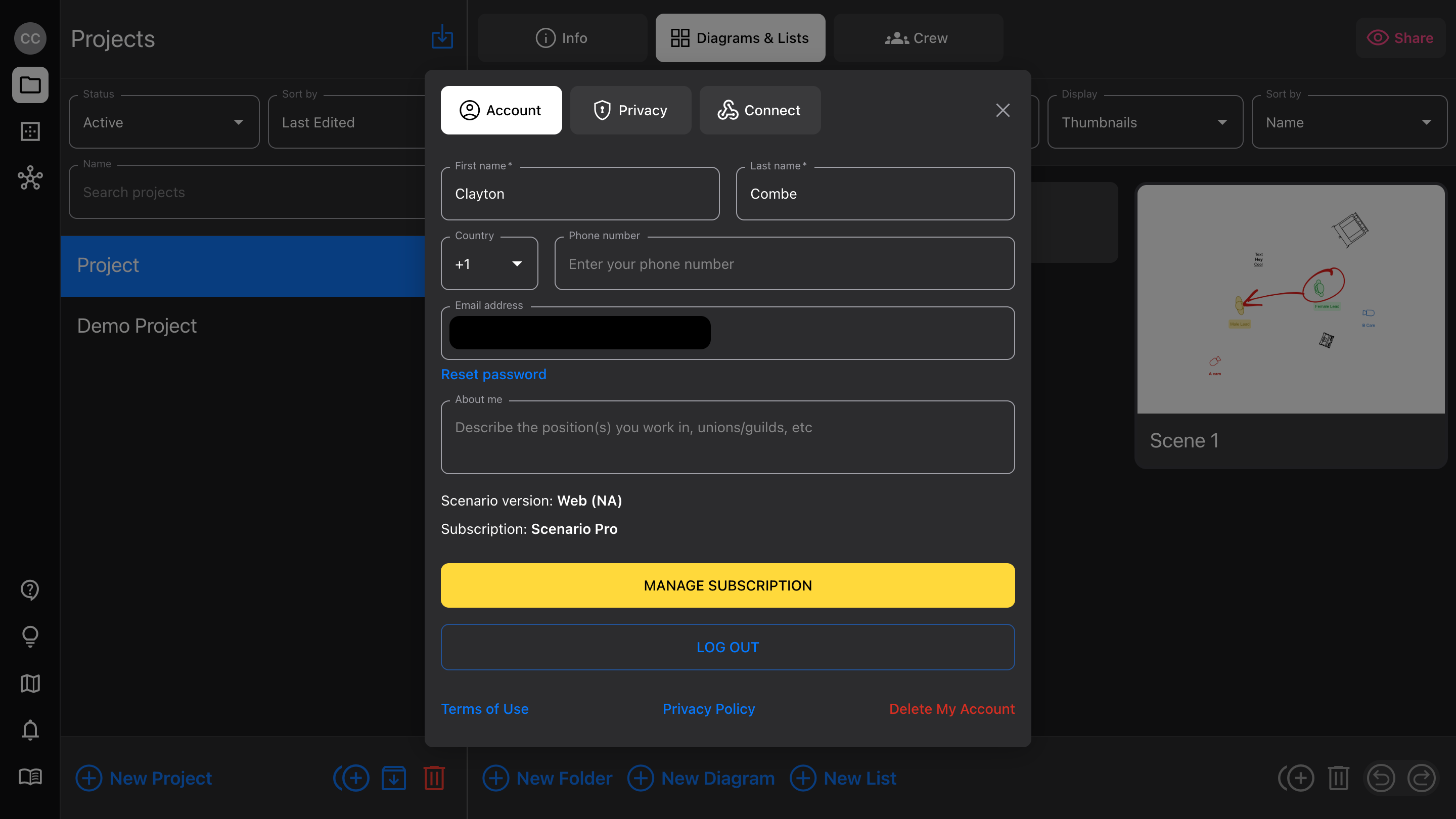
This allows you to:
Change your name
Change your phone number
Change your email address → this will require confirming your new address, and logging back in
Change your About Me info → helps other accounts find you by the roles you typically perform, or the type of work you do
Manage subscription → opens your subscription management page, depending on your device and how you’ve subscribed
iOS or macOS → manage in your iCloud account
Android → manage in the Google Play store
Web (recommended) → manage payments on the Stripe portal
For more info, see Subscriptions
Privacy
Protect your personal contact info, and configure who can find you an add you to their Projects.
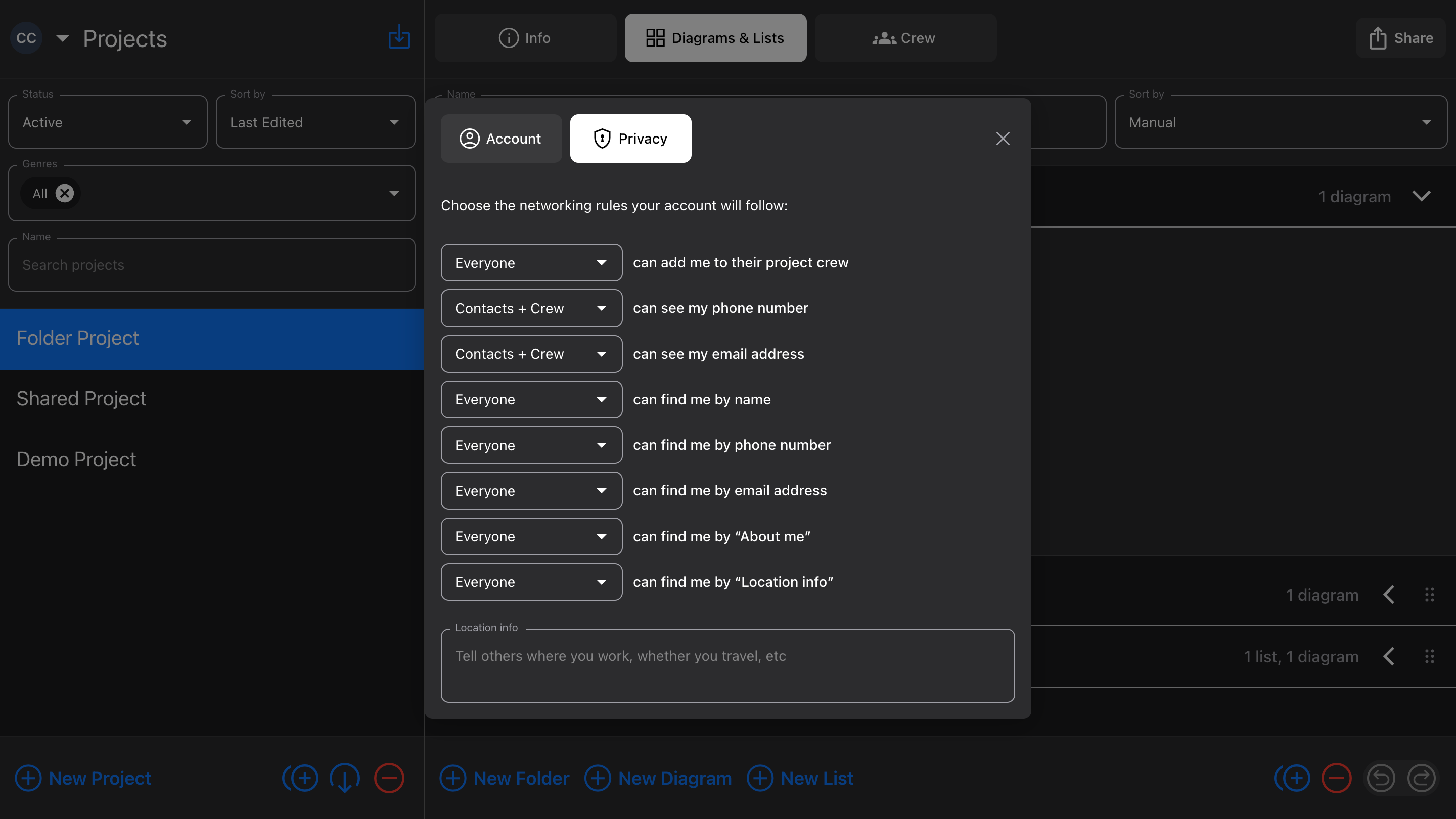
Default settings allow everyone to find you and add to Projects, but only some accounts can see your phone number and email address
Change these settings at any time
It won’t change which Projects you’re already added to, but will update search settings for the future
It will change who can see your contact info
Fill out Location info if you want people to be able to search for you based on where you typically work