Projects
Written By Clayton Combe
Last updated 2 months ago
Overview
Projects are the broadest organizational items in Scenario.
Projects are only visible with a paid subscription
Scenario Starter allows you to create unlimited Projects
See Scenario account for more info
Projects have properties:
Name
Dates
Genres
Notes
Projects can be shared with other Scenario accounts
Use Keyboard Shortcuts to speed up your work
Managing Projects
Projects can be found in the “home” view of Scenario.
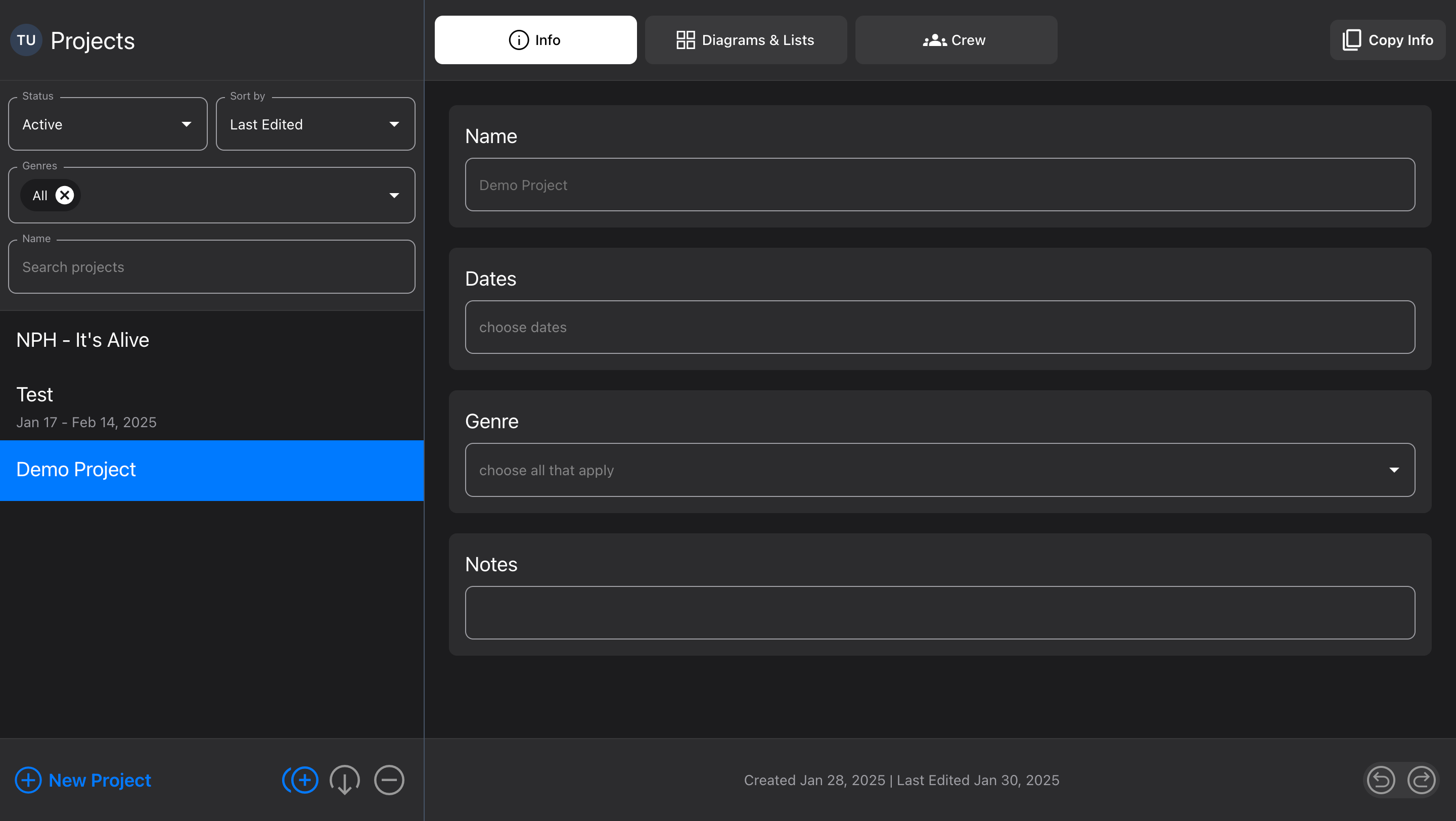
Use the filters and search features to find any Project.
Status - filters Projects by different criteria
Active (default) - Projects that are not Archived
Future - end date is in the future
My Projects - created by you
Shared with me - not created by you
Archived - Projects that you have Archived
All Projects - no filters
Deleted - items deleted within the last 14 days
Sort by - determine the order Projects are displayed
Name - alphabetical with A at the top
Start date - later dates at the top
Last edited (default) - edited most recently at the top
Genres - choose multiple of all genres that are in use by your Projects
Name - type to filter Projects by name
The bottom toolbar contains these functions:
New Project → creates a new blank Project with one Diagram
Duplicate → creates an exact copy of the selected Project and all its contents
Archive → removes your Project from the “Active” status
Unarchive → moves your Project back to “Active” status
Note: archived Projects will not be deleted
Delete → delete the selected Project
Note: you cannot delete the Demo Project from your account, but you can Archive it
Undo/Redo → undo and redo changes to Projects
You cannot undo creating a Project, List, or Diagram, because it may contain other items. You must delete it instead.
Info
The Info tab displays basic information about your Project
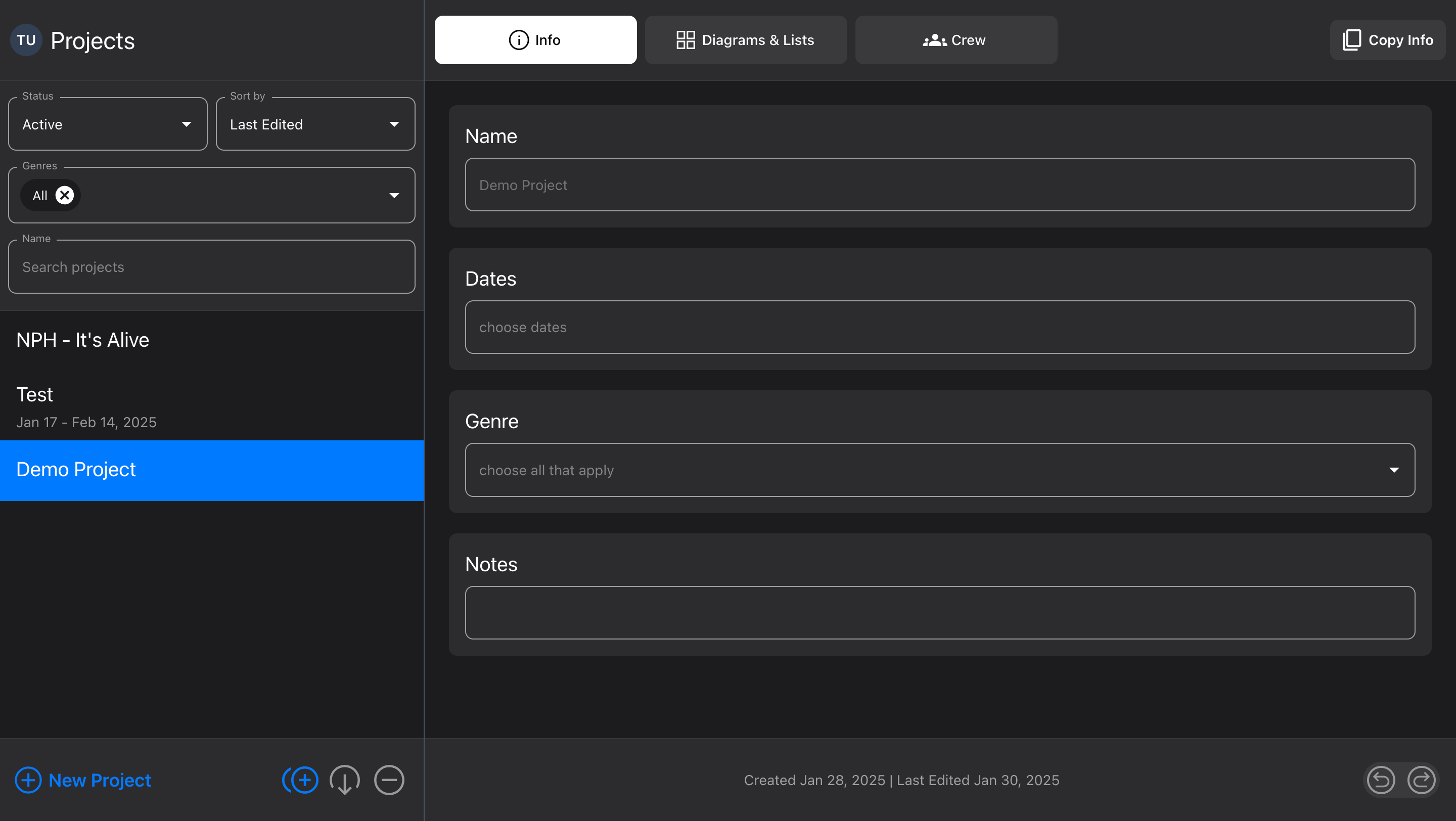
Name - the displayed name
Dates - the dates your Project runs
Genre - what kind of Project this is (useful for organization and filtering)
Notes - freeform text notes about your Project
Copy Info → copies the above, as text, to your device’s clipboard (for sharing)
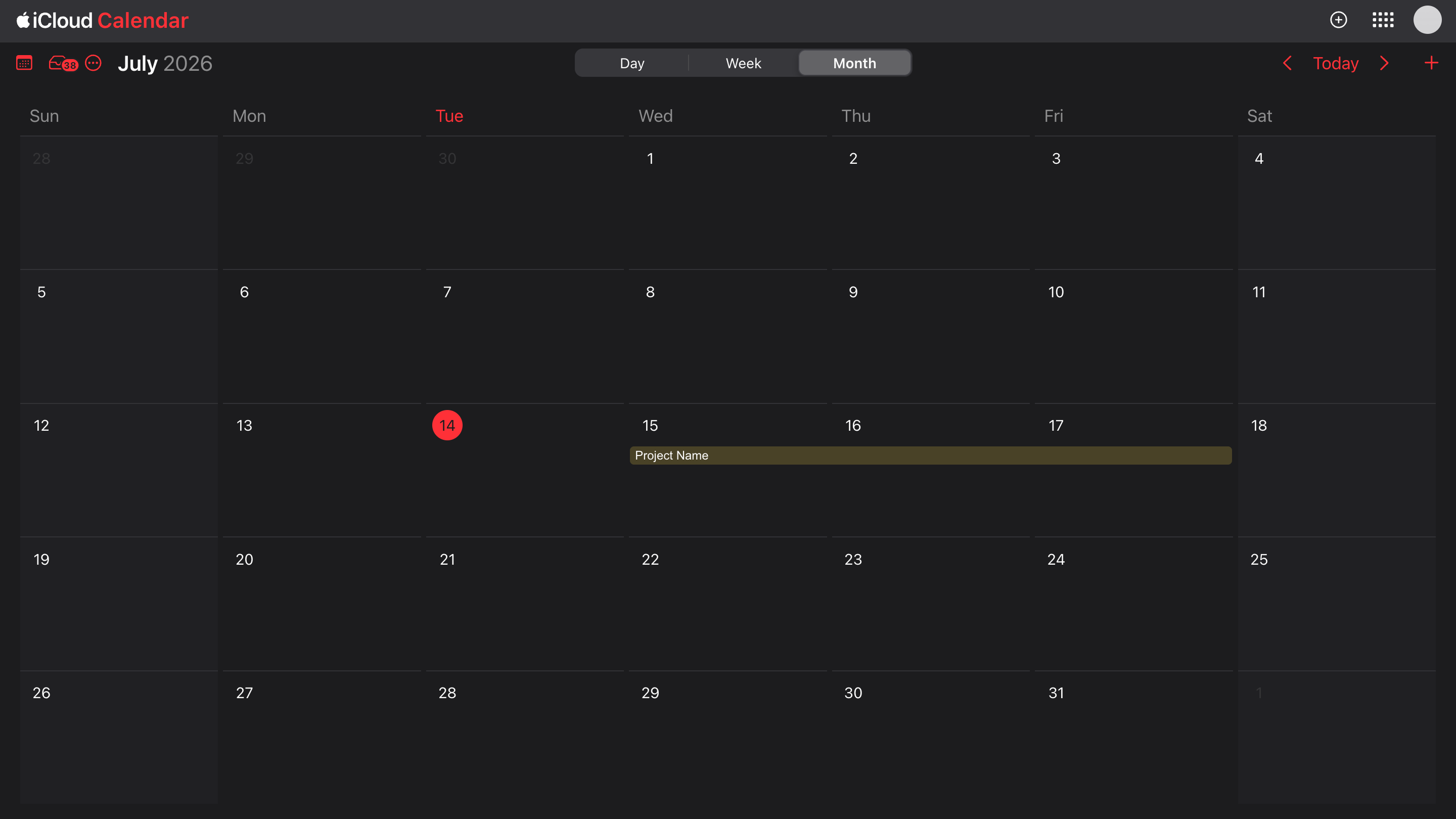
Project calendar sync
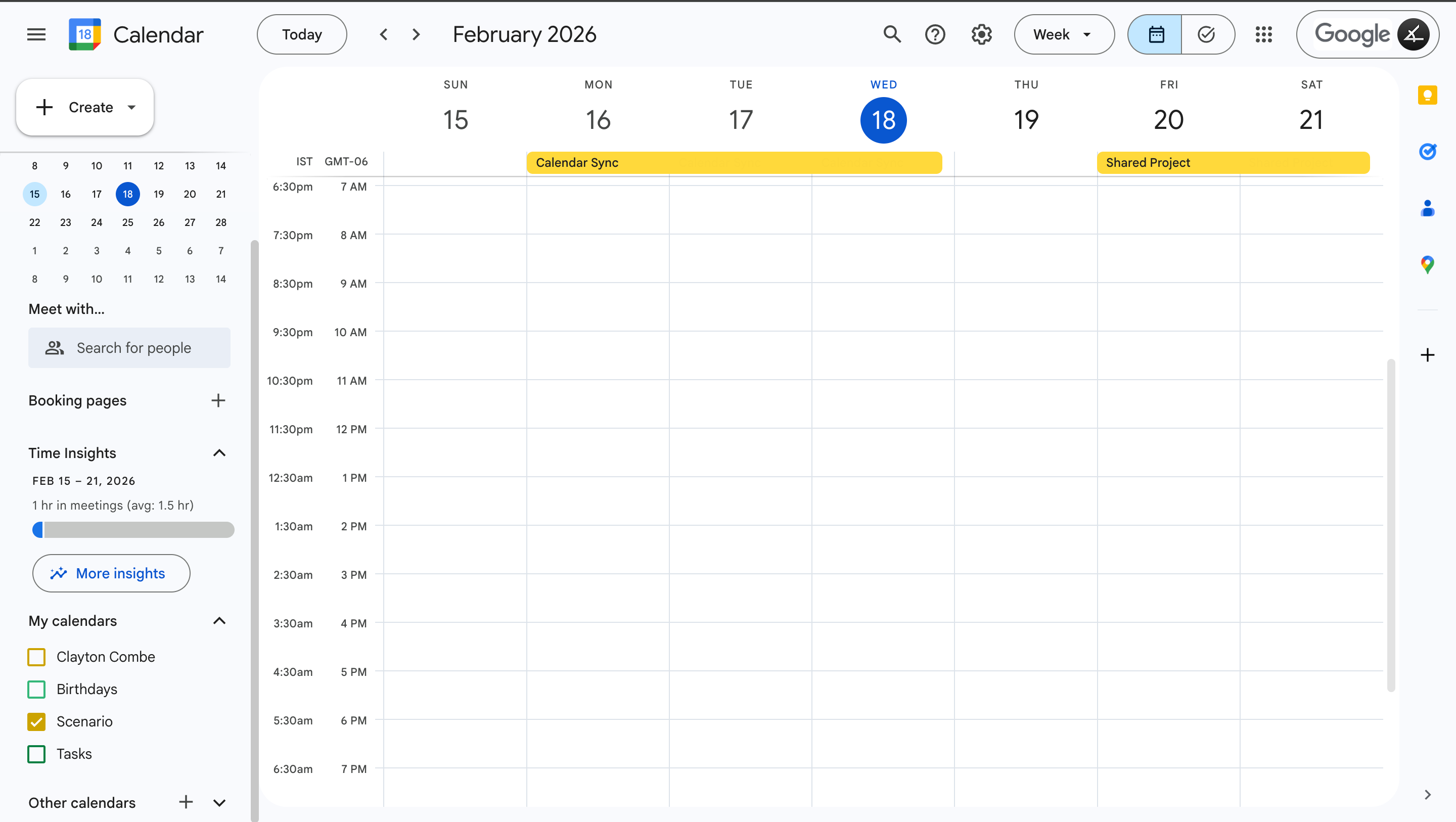
Your Project dates can be synced to connected Google or iCloud calendars.
Any Projects that have dates assigned will appear on your calendar, and stay updated when you make changes
Changes usually sync within a few seconds, but may take longer with poor network connection or page caching (refreshing the calendar sometimes helps)
Google Calendar
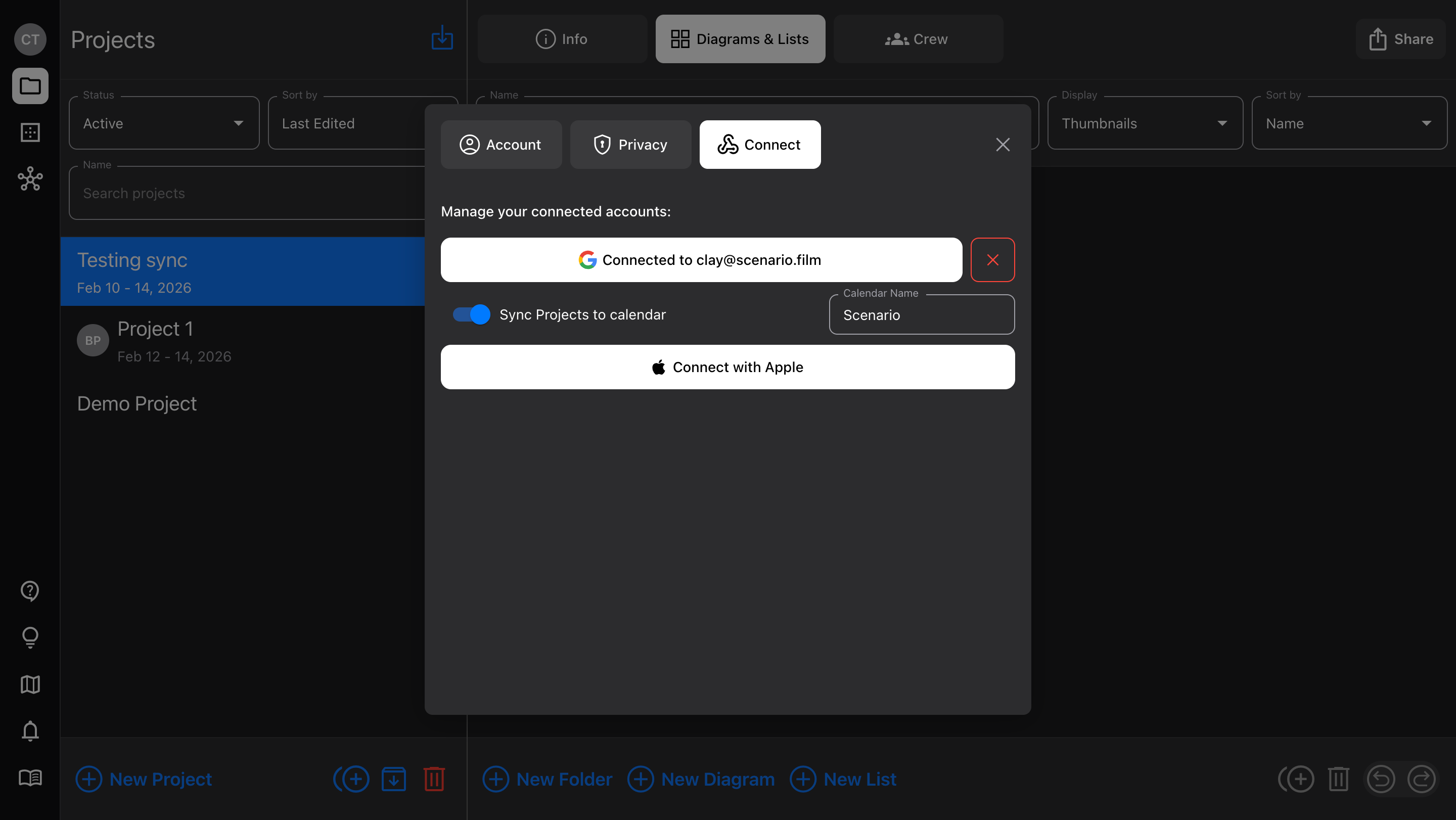
If you have a connected Google account (see Scenario account), you can sync your Projects to your Google Calendar.
Go to Account > Connect and enable the option to “Sync Projects to calendar”
Customize the calendar name, if you want
Disabling sync will remove all synced Project events from the calendar, as well as the “Scenario” calendar (and any events that were added manually)
iCloud Calendar
If you have a connected Apple account (see Scenario account), you can sync your Projects to your iCloud Calendar.
Go to Account > Connect and enable the option to “Sync Projects to calendar”
This will require you to go to appleid.apple.com and generate an app-specific password
Make sure you copy and paste it right away, because you can only see it once!
Customize the calendar name
Like Google, disabling sync will remove all synced Project events from the calendar
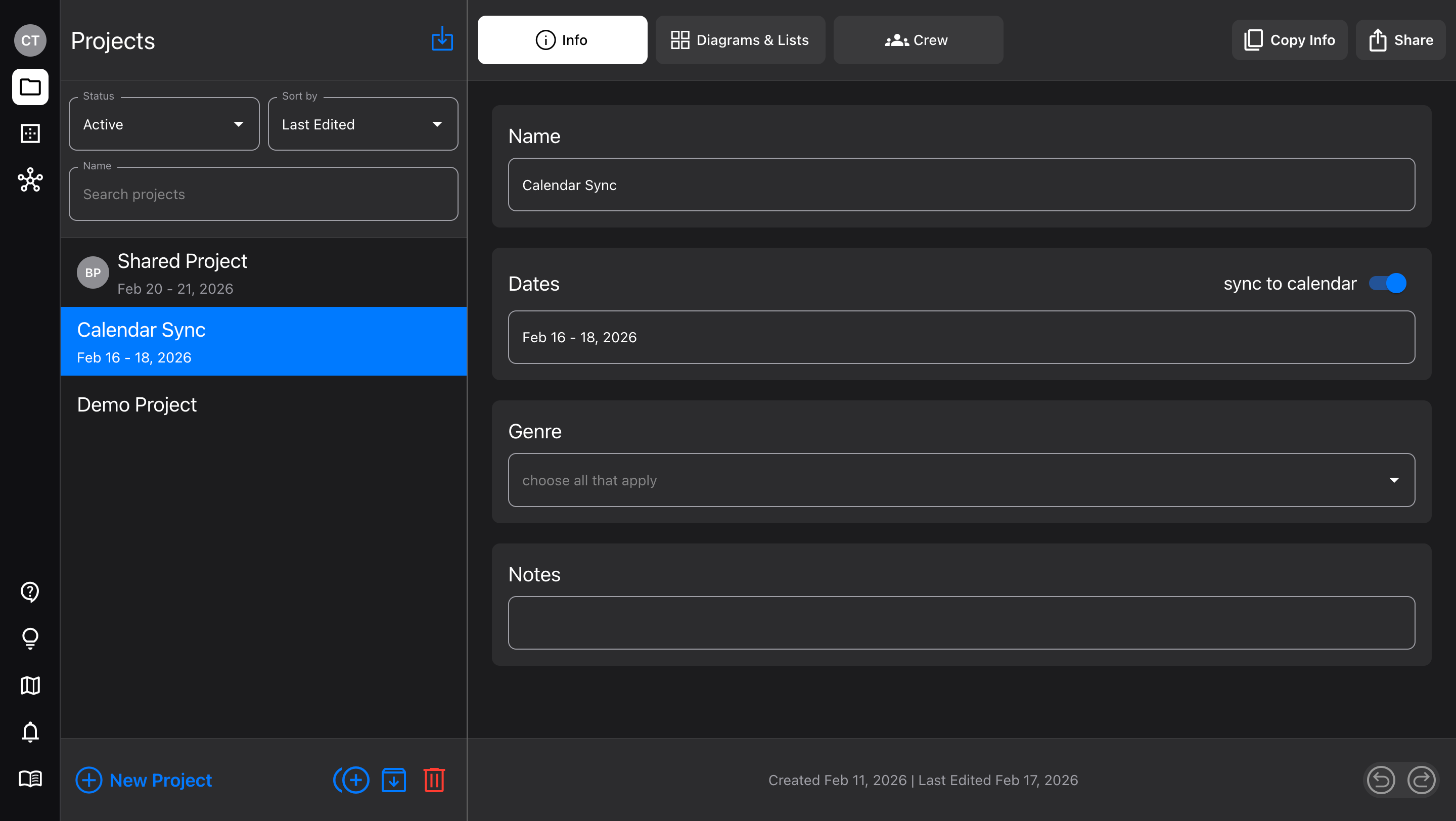
Toggle for individual Projects
Individual Project “sync to calendar” can be toggled off or on at any time, using the switch in Project Info.
Projects that others have shared with you will also sync
Each shared user has their own toggle to sync or not, because not everyone has a calendar connected
Diagrams & Lists
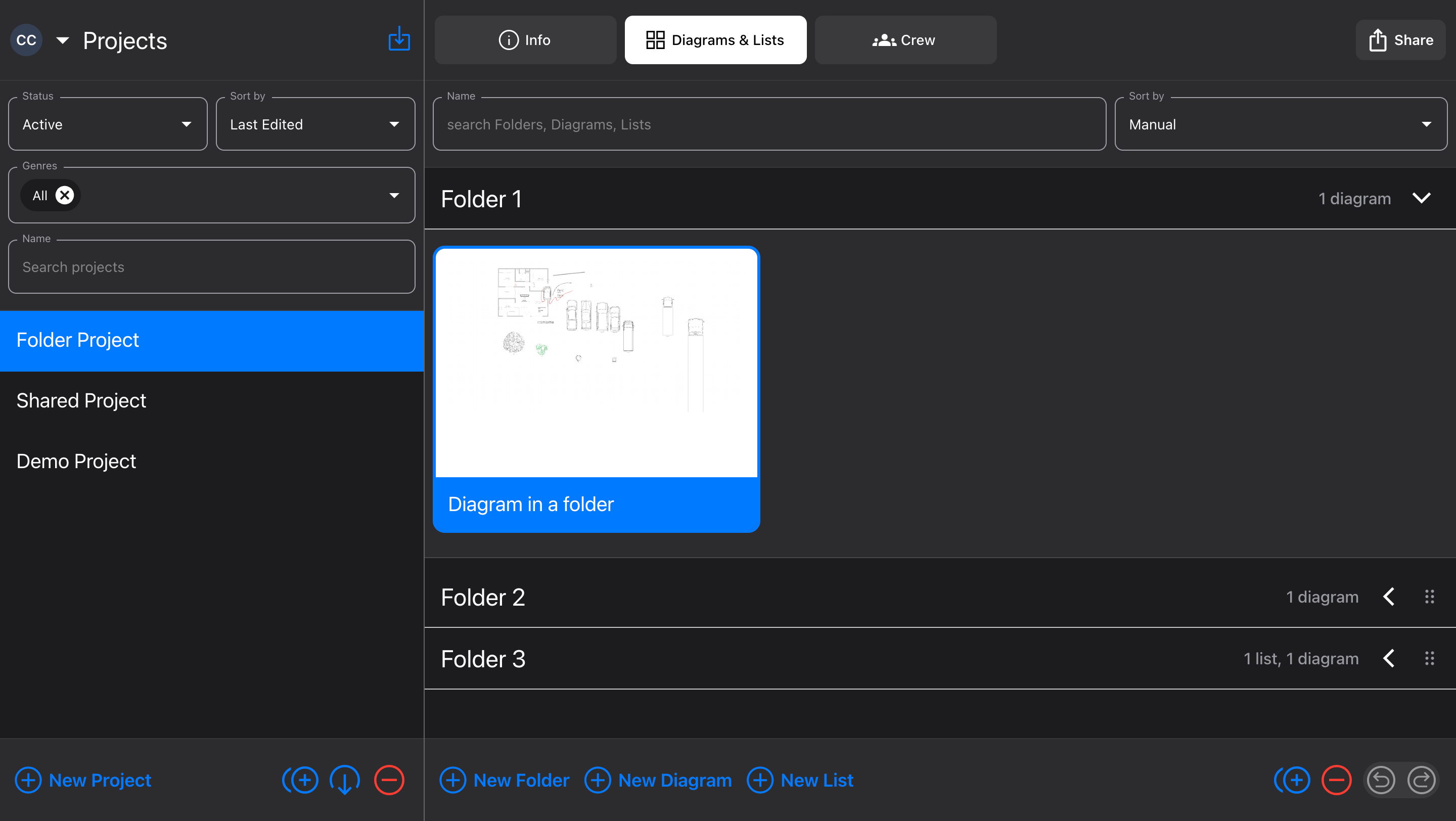
The Diagrams & Lists tab shows the items that belong to the Project. For more information on managing them, see Diagrams and Lists.
You can also add Folders to organize larger Projects.
Drag Diagrams and Lists into Folders
Sort Folders by Name (alphabetically) or Manual, which allows you to drag them into the order you prefer
A Folder must be collapsed to drag it and re-order
Navigate items in your Project using the
upanddownarrow keysUse the
rightarrow key to expand a Folder, andleftarrow to collapse itHold
OptionorAltandrightorleftarrow to expand or collapse all Folders in the Project
Crew
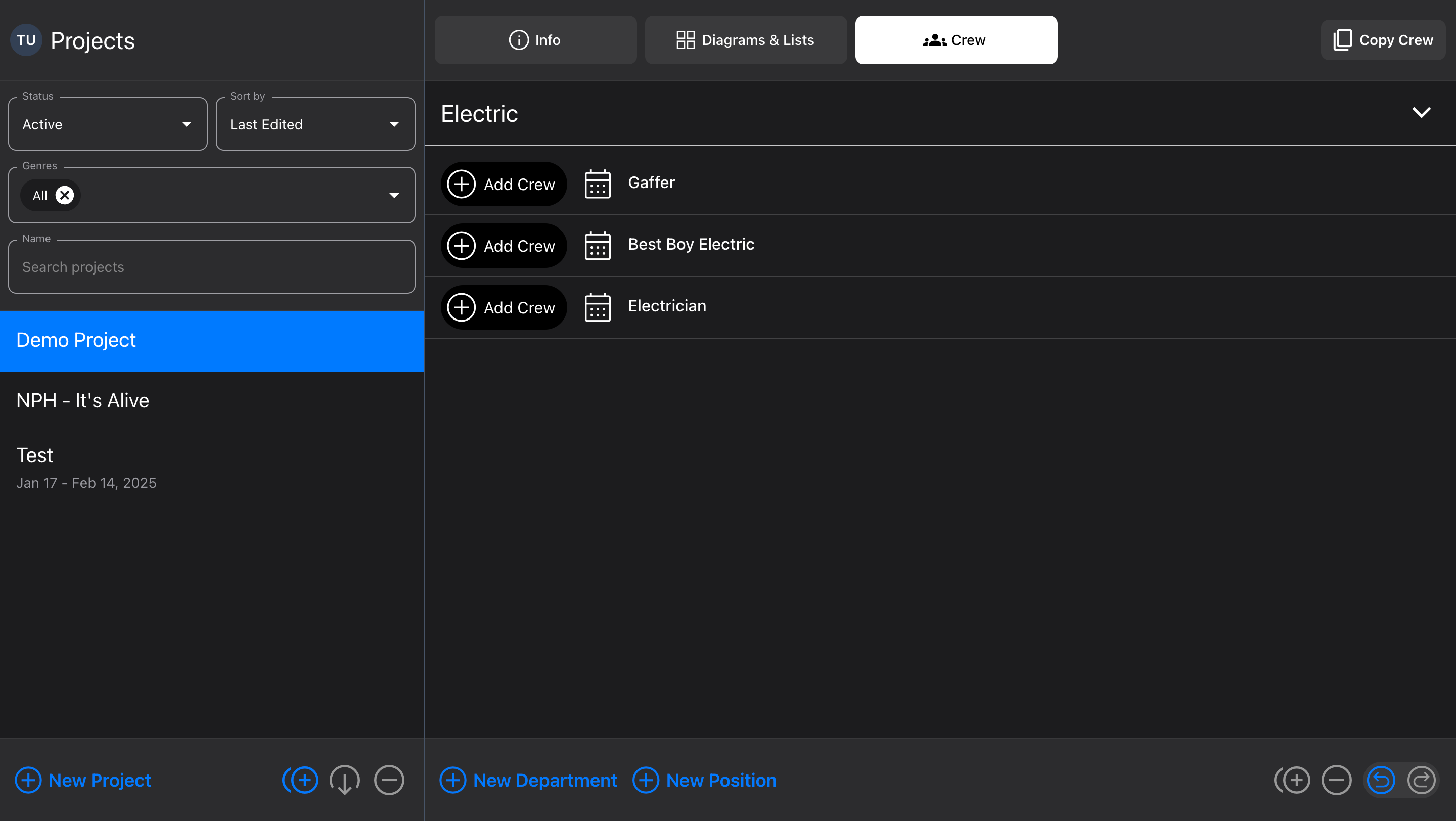
The Crew tab contains the people who will be working on the Project. For more info, see Crew.
Deleted items
When you delete a Project or any of its contents, this is not permanently removed, it’s “sent to the trash.” There are a couple ways to get it back:
“Undo” deleting the item right after you do it
Go to Projects view and change the status to Deleted, to see all the items you deleted in the past 14 days
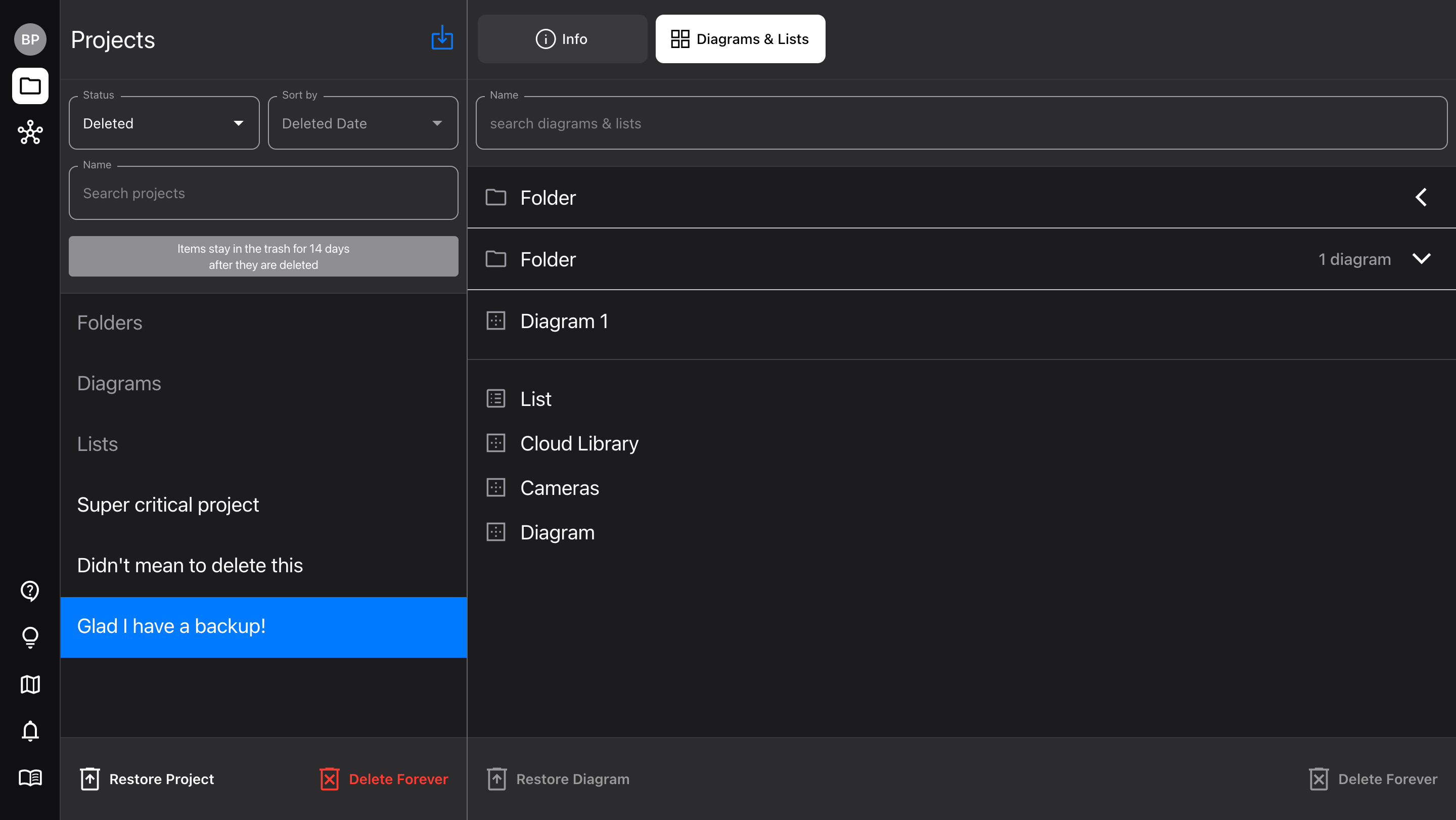
In the “deleted” view, select the item you’d like to recover, select it, and choose “Restore”
This will place the item back where it was originally (within its parent Project, if applicable)
Restoring a Folder will restore all of its contents, unless they were already removed by:
Deleting the folder without its contents
Restoring the Folder’s contents without the Folder
You cannot restore items that are inside a deleted Project (you must restore the whole Project)