Diagrams
Written By Clayton Combe
Last updated About 1 month ago
Diagrams represent physical layouts of your setups.
They can include lighting, camera, actors, and other items
The end result is usually a saved image
Use Keyboard Shortcuts to speed up your work
Managing Diagrams in Projects
Navigate to the Diagrams & Lists tab in a Project to see its Diagrams:
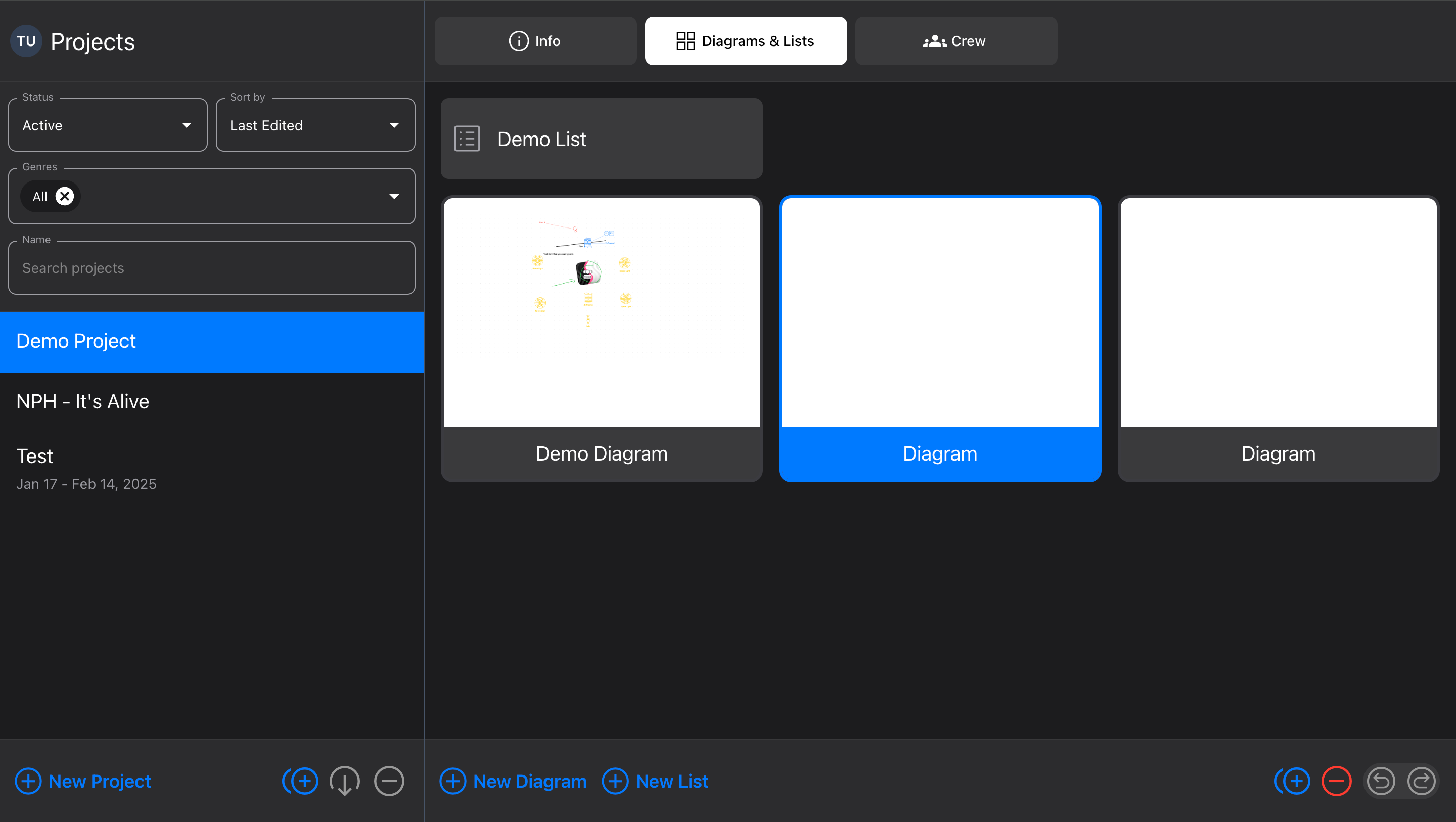
New Diagram → creates a new blank Diagram in the Project
Duplicate → makes a copy of the selected Diagram and all its contents
Delete → deletes the selected Diagram
(Click and drag Diagram) → move Diagram to another Project
Undo/Redo → undo and redo changes made to Diagrams
Diagram editor
To open a Diagram, select it, then click it or press Enter to present the Diagram editor:
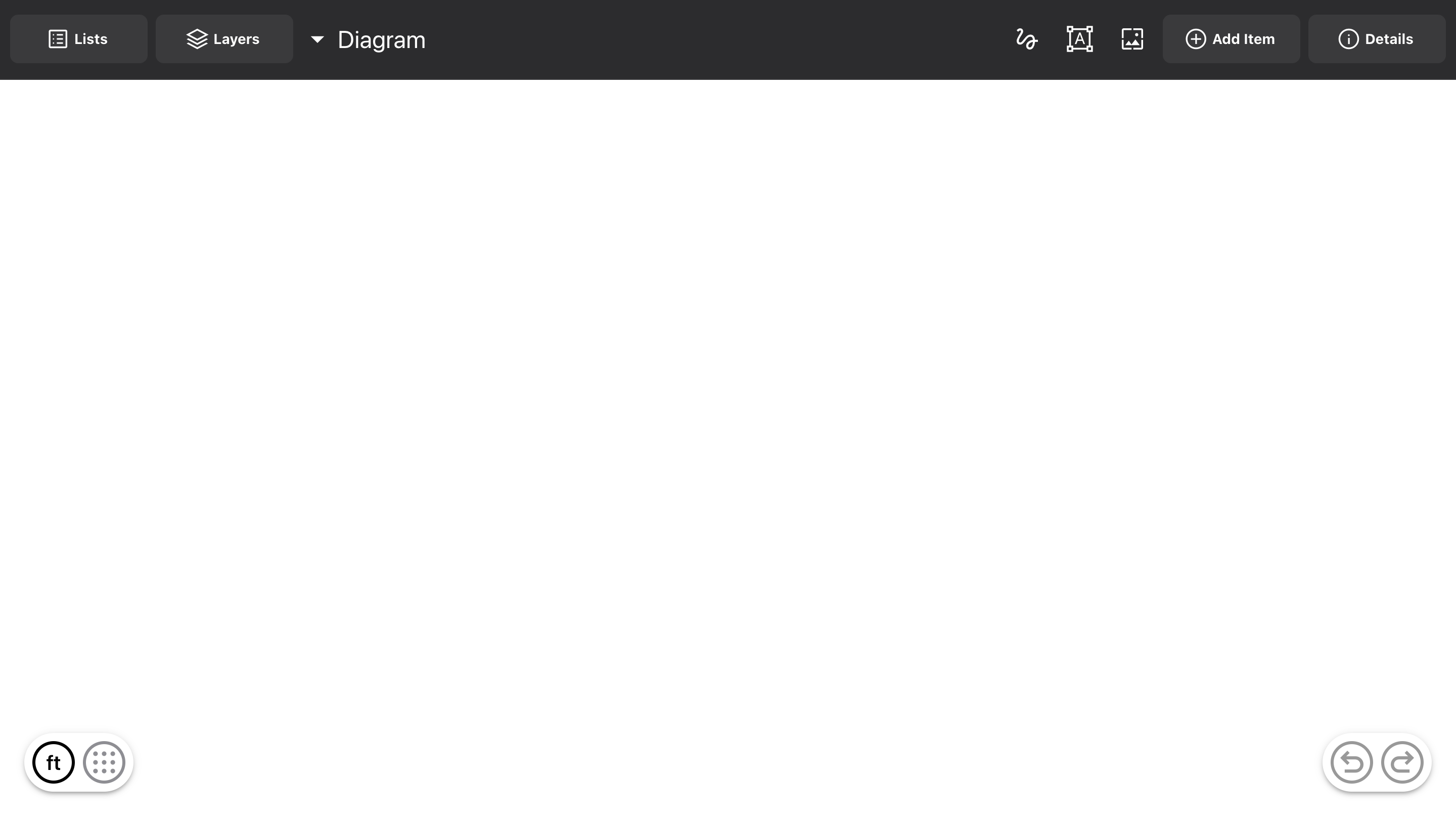
The fundamental concepts are:
The “canvas”
Your workspace to build in.
Pinch to zoom, scroll with two fingers to move around
Hover or right-click to reveal Tooltips & Pop-Up Menus and find more features
Items
All types of objects that can be added:
Actors represent people, which can be moved around and can “target” other items
Cameras can move and target, but also see a field-of-view based on format and lens focal length
Fixtures represent lights, which can also target, and set DMX channel and address
Pipes represent a long item that’s resizeable in one dimension (like truss or dolly track)
Arrows represent motion; connect them to other items and create complex paths
Markup, Text, Images allow you to annotate your Diagrams with items that don’t represent real-world objects
Floor plan multiple types of objects, including walls, doors, windows, stairs, and gaps
Layers
How the different items on your diagram are organized. Rearrange and Group items to define how they display and overlap.
Visibility
Hide and show items by type, or certain display details, such as DMX labels. This ensures that everyone working on a Diagram can look at only what they need to see; each user has their own visibility setup.
Open the sidebar by clicking the button in the bottom left, or use the
VkeyHide or lock rows to update their corresponding display on the diagram editor (but remember, this is just what you see
This view also lets you change the units of measure for the dot grid
Add Item
Add new items from the built-in library or Cloud Library.
Drag-and-drop items onto the diagram, or use the “Add” button
Hold
Shiftwhile dragging an item on top of another item (or use the “Swap” button) to “swap” it outThis changes the item, but keeps the old items properties (color, DMX, etc)
Details
View and change an item’s properties.
Editing items
Any item on the Diagram can be dragged to move
If you can’t select it, check whether it’s locked
Move, rotate, hide, or format its Text Label
Use the bottom action button to hide/show the label as needed
If the label is hidden, you can change it from the Layers or Details sidebar
Double-click or use the
Enterkey to toggle text editing, and format the text as neededLabels can format Color, Text Size, Bold, Italic, Underline, Strikethrough – no lists or justification (like Text items Markup, Text, Images)
Label formatting applies to the whole label text, not only the selected part
Multi-select items by:
Dragging a box around them with one finger
Use four fingers to create a selection box
Hold the
ShiftorCMDkey to select additional items
For targeting-enabled items, drag the crosshairs to “focus” the item
If pointed to another item, the item will “target” that item and point at it wherever either of them move
If pointed to empty space, the item will just have its rotation set
For items with rotation buttons, drag the button to rotate the item
For items with control points, drag to perform specific functions
Item text labels → move the label relative to the item
Pipes, Images, Text → resize the item
Groups
Combine multiple items for better organization and easier editing
Diagram editor settings
In the bottom left, decide how your device displays Diagrams:
Units of measure - switch between feet and meters by tapping the button that says “ft” or “m”
Dot grid - display a grid of dots as a scale reference, or hide it
Snap - ensure items align with each other, and resize to whole numbers
Bottom actions
When an item is selected, the Diagram editor displays relevant actions at the bottom of the screen:
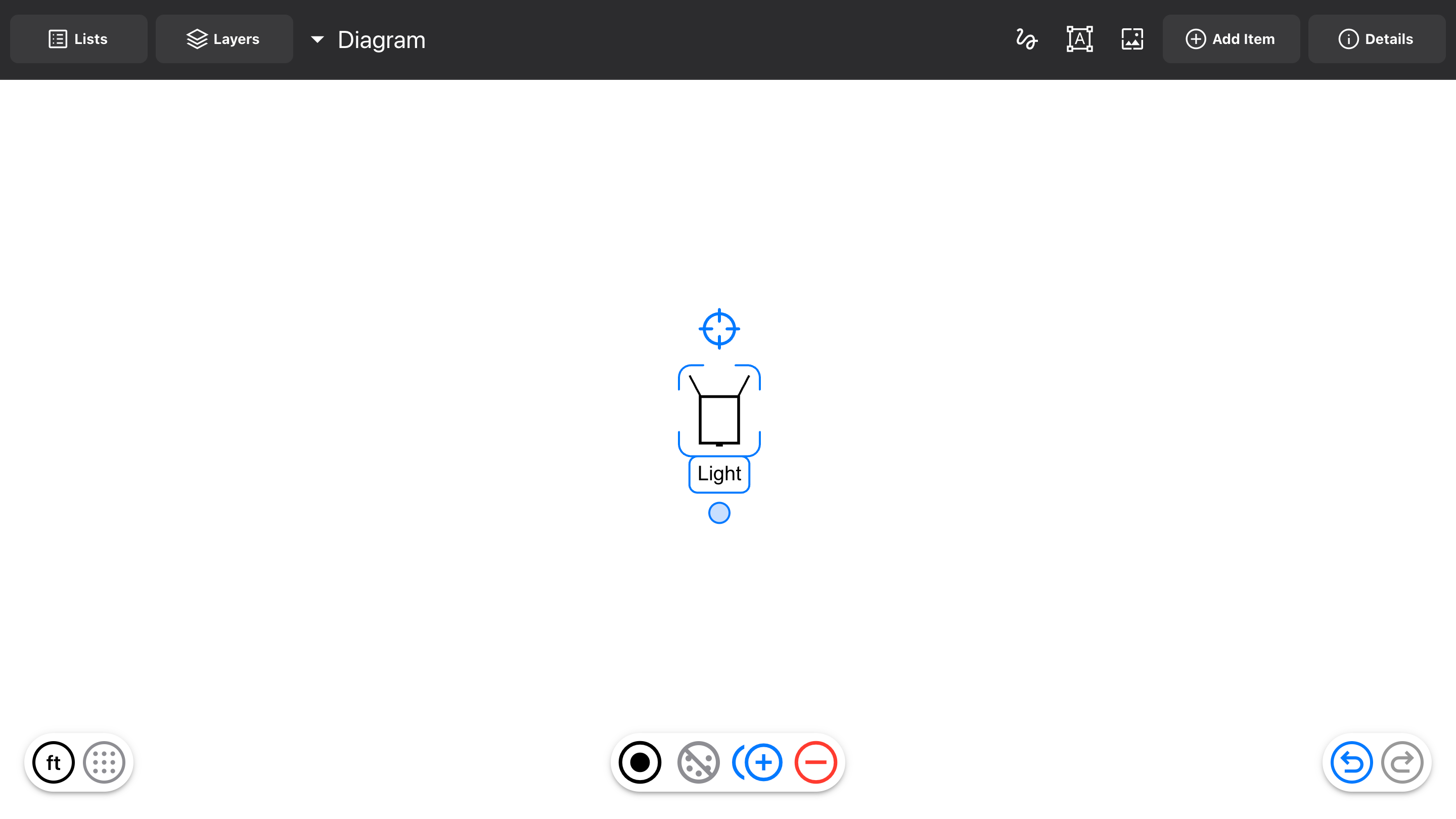
Color → choose among item colors, for stroke and fill
Text size → change the size of the text
Line width (only Arrows and some Floor Plan items) → change line thickness
Line style (only Arrows) → change between solid and dashed or dotted
Change lens (only Cameras) → open the lens picker
Frame image (only Cameras) → show or hide the frame image view
DMX (only Fixtures) → toggle whether DMX controls are displayed for that Fixture
See DMX keypad for more details
Duplicate → make an exact copy of the selected item
Delete → delete the selected item
Cut/copy/paste
Items can be cut or copied from any Diagram, and pasted to any other Diagram (subject to privacy settings in your Scenario account)
Use keystrokes
CMDXfor cut,CMDCfor copy, andCMDVfor pastePerform from a pop-up menu as well, plus additional options:
Paste here → centers the pasted item at the click point
Paste to swap → pastes to replace the current selected item
Undo/redo
Use the buttons in the bottom right corner to undo and redo your actions, or use the keystrokes CMD Z and CMD SHIFT Z
Projects sidebar
Display all Projects, or recently opened Diagrams and Lists, for fast switching.
Layers sidebar
Display all items on the Diagram
Select any item
Sort and filter for easy use
Group items for more control
Rearrange items to control overlapping
Add Item sidebar
Add new items to your Diagram
Search and filter to find what you’re looking for
Drag-and-drop to add or swap the item onto the Diagram
Details sidebar
Edit the properties of an item
For any selected item or Group (and for the Diagram itself if nothing is selected)
Edit name and notes
Change size and rotation numerically
Lock - prevent the item from being selected or moved from the Diagram
Hide - make the item invisible on the Diagram
Opacity - set the item’s visibility
Snap
Snapping allows you to align items quickly on the Diagram; click the “magnet” button or press the N key to turn it on and off. See Snap, Targeting, Connection for more details.